Your phone's mobile data, on your PC.
Smart Tether lets your Windows PC use your Android phone's mobile data over a USB cable or Wi-Fi, with the phone's hotspot left off.
Version 0.2.0. Free and open source under the MIT licence. You need both: one for the PC, one for the phone.
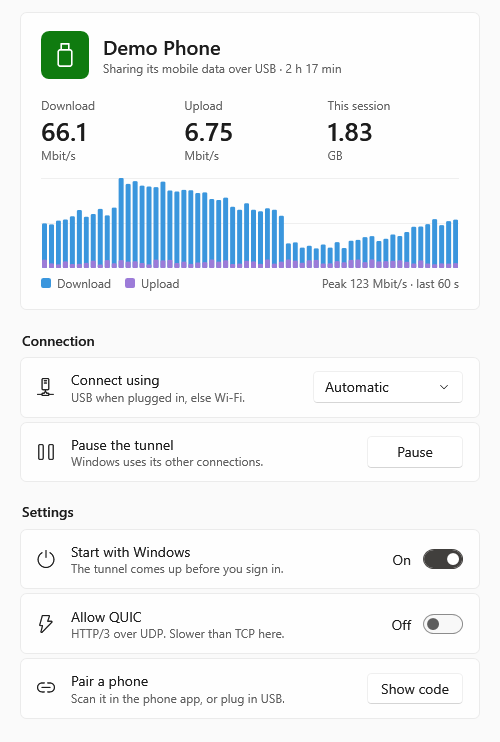
USB or Wi-Fi
Pull the cable. Your call keeps going.
Plug the phone in and the link moves to USB. Unplug it and it carries on over Wi-Fi. Open connections are kept across the switch, and across short drop-outs of up to about 30 seconds.
UDP keeps a stable public port for each PC socket, also across switches, so voice calls and games keep working.
Prefer one or the other? Choose USB only or Wi-Fi only in the tray menu or the app window.
Same connections, no reconnect.
On the phone
The phone's hotspot stays off.
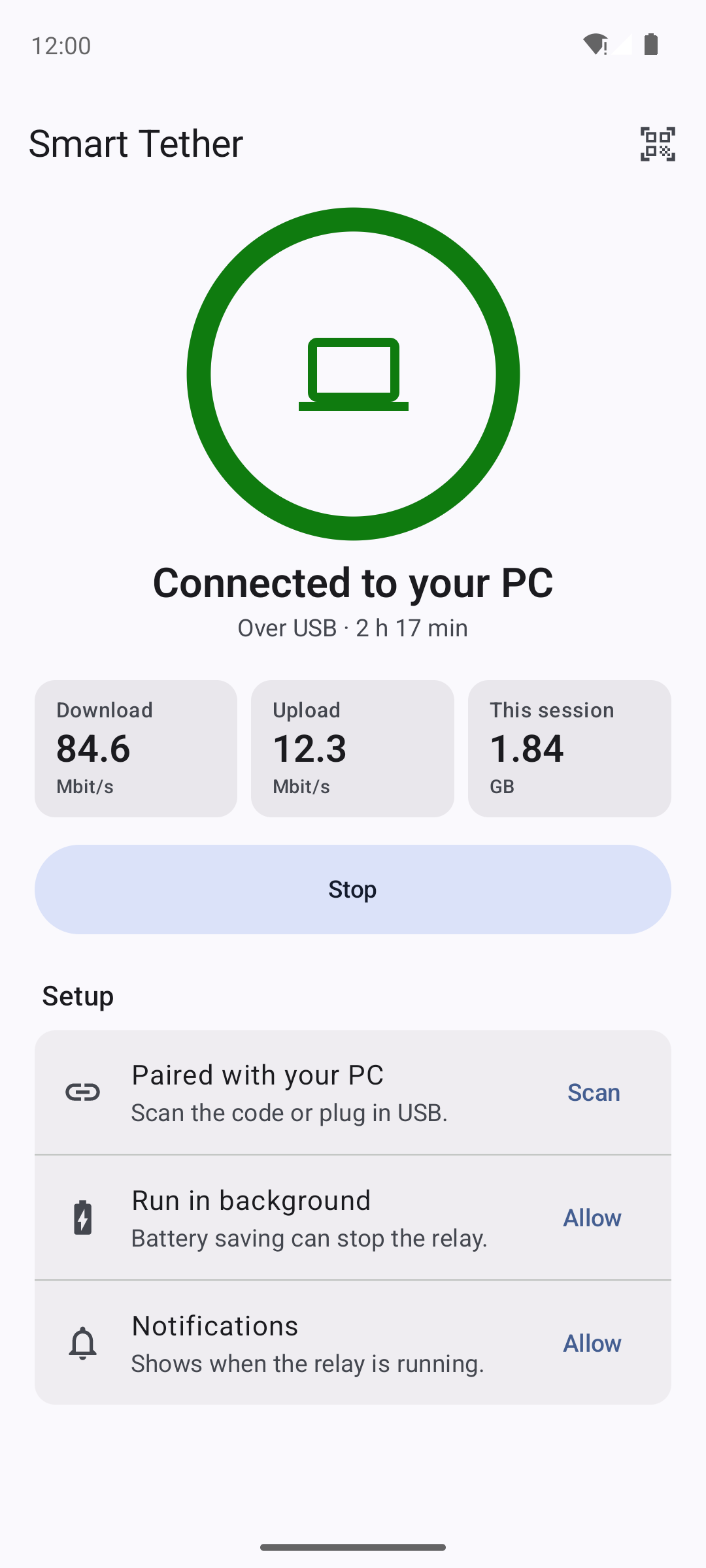
No hotspot, no USB tethering. The phone app opens a normal connection on its mobile data for each one your PC makes, and passes the data along. DNS lookups go to the mobile network's own servers.
Over Wi-Fi, the phone joins your PC's own Windows Mobile Hotspot as a local-only network. It carries the phone's data to this PC and nowhere else, and the PC turns it on by itself.
The relay runs as a foreground service, so it keeps going with the screen off.
In the tray
One look at the corner of the screen.
The tray icon tells you how you're connected. Hover over it for the current speed. Left-click to open the window; right-click to pick a transport, pause, or quit.
Pause sends the PC back to its other connections, like Ethernet or home Wi-Fi, without unpairing. If the phone can't be reached for 10 seconds, Windows falls back on its own.
Quitting the tray app doesn't stop the tunnel. The PC side is a Windows service and can start with Windows, before you sign in.
- Green: over USB
- Blue: over Wi-Fi
- Amber: looking for the phone
- Gray: off or paused
Private
No account. Nothing sent home.
Pair the phone once, by QR code or by plugging it in. There is no telemetry, analytics, account or cloud service. Your traffic goes from your PC to your phone and out to the places your apps choose.
- Between PC and phoneThe USB cable, or the PC's own hotspot (WPA2, random passphrase).
- Who may connectA PC without the paired token is rejected.
- EncryptionYour apps' own HTTPS and TLS still apply end to end.
- LogsKept on your PC and your phone. Nothing is uploaded.
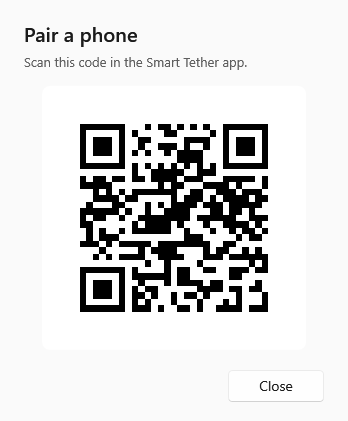
Set up in five steps.
You only pair once. After that it's one tap on the phone, or just the cable.
- Install it on the PC
Run SmartTether-Setup.exe. It isn't code-signed, so SmartScreen may warn you: choose More info › Run anyway. The app opens when setup finishes.
- Install it on the phone
Download SmartTether.apk from the same release on the phone and open it. Allow installing from that source when Android asks.
- Go through the phone's Setup list
Allow notifications and running in the background. On Xiaomi, Redmi and POCO phones, also turn on Autostart and set Battery saver to No restrictions.
- Pair once
In the PC app, under Pair a phone, click Show code and scan it with the phone. Or turn on USB debugging, plug the phone in and accept the prompt.
- Tap Start
Tap Start on the phone, or just plug it in if you paired over USB. The tray icon turns green or blue.
What you need
- PC
- Windows 10 version 1809 or later, or Windows 11, on x64. For Wi-Fi, an adapter that supports Mobile hotspot; USB works without it.
- Phone
- Android 12 or later, 64-bit ARM, with mobile data.
- For USB
- Developer options › USB debugging turned on, and the tray app running.
- Good to know
- One phone per PC. Keep both apps on the same version. Your mobile plan may limit sharing data with other devices; following its terms is up to you.